MSFS 2024: CHECK ALL THREE PROFILE LAYERS
1. Open Settings, then Controls. Check the aircraft at the top left and select the controller to edit. The three profile rows cover general controls, aircraft-category controls and the selected aircraft model. 2. Use the gear beside each profile to duplicate or rename it. Work on clearly named copies and check all three selectors when changing aircraft. [58, How to configure controllers; The Three Main Presets]
3. Understand the context. A menu action and a cockpit action may legitimately share a button because they operate in different contexts. Two simultaneously active flight-control assignments need investigation. Record the context and profile as well as the button number when documenting a conflict. [62, Contexts, Actions, Profiles; Understanding Contexts And Profiles]
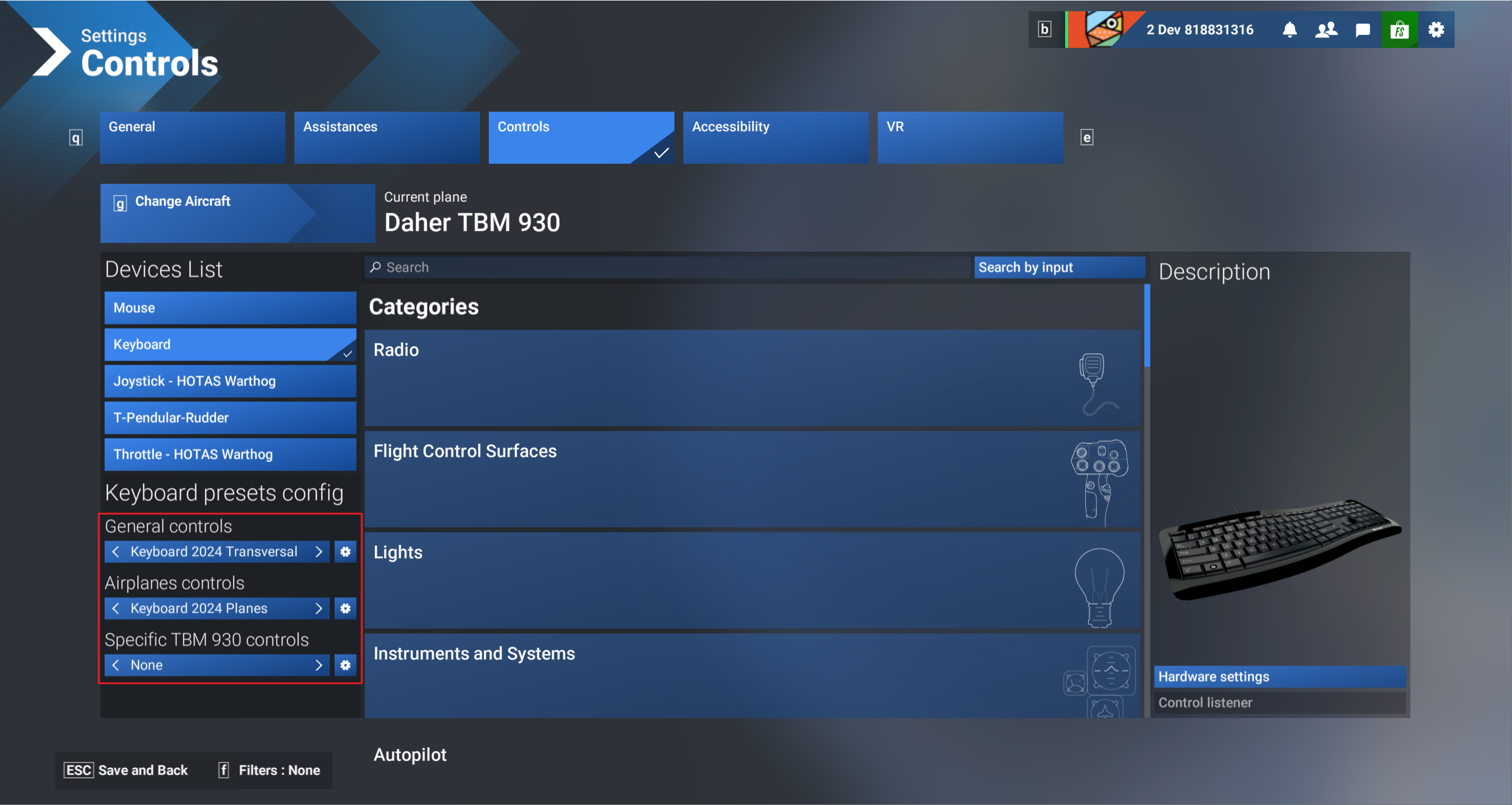
Microsoft's official MSFS2024 profile example. General, category and model-specific controls occupy separate rows. The example aircraft is a TBM930, not Fenix; use the illustration to identify profile layers. [58, The Three Main Presets]
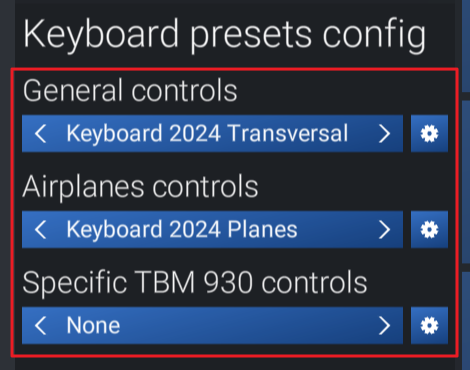
Detail of Microsoft's three profile selectors. This example uses a TBM930; select the relevant Fenix model in your own setup. [58, The Three Main Presets]