USE THE EFB AS AN INTEGRATED OPERATIONAL WORKSPACE
Organise the EFB around the next operational decision: current flight data, actual loading, performance result, required chart and applicable reference. Those applications contribute different pieces of the preparation. A retrieved OFP does not establish completed loading; loading does not establish a reviewed takeoff calculation; a transfer does not establish an accepted clearance. Follow the result into the receiving aircraft page and confirm it there. Detailed FM and navdata workflows are developed elsewhere in this edition; the EFB work should support that verified preparation rather than create an independent competing version of the flight. [109, SimBrief integration and aircraft/profile review] [93, Loadsheet reconciliation] [66, PDF pp. 123–128]
The V3 Documents app supports local PDF and Markdown documents, with Fenix extensions for interactive procedures and aircraft-specific content. Keep a document package's images and included files together so a referenced illustration or section remains available. Use clear titles, ordering and navigation for the pages needed in each phase. A long reference should be located before workload makes searching inconvenient. Our guide's references link to the full bibliography and source locators; those links are part of making an assertion inspectable rather than decorative source numbering. [121]
Native checklist behaviour and PDF form behaviour require separate checks. The Fenix Markdown documentation establishes native interactive checklist functions; support for PDF as a format does not independently verify every PDF widget or reader feature inside the EFB. This edition does not claim a live test of all form behaviour in that app. Use the supplied native checklist edition for its documented workflow and test any PDF interaction you intend to depend on. A visually correct checkbox and an interactive, retained state are different acceptance criteria. [121, Normal checklists, eQRH checklists and document-format scope]
Remote EFB access introduces a browser and network path as well as the aircraft application. Fenix's tablet-linking article calls for the device to be on the same network and describes platform-specific requirements and Android uncertainty. Validate the actual device/browser combination, image loading and controls before the flight. A remote page failing to respond need not mean that the cockpit system has failed. Compare the in-cockpit EFB, aircraft power/runtime state and remote connection before changing aircraft controls in an attempt to repair the network presentation. [139, Same-network requirement and device/browser scope] [136, Fenix application setup]
For departure, preserve one accepted set of data across the EFB and MCDU; for arrival, refresh the weather and landing assessment; after shutdown, retain the results needed for the debrief. If the platform or package changes, verify native documents, figures, links and the essential calculation/transfer path again. The professional benefit is a coherent workspace whose content is available when needed. It is not the number of applications open simultaneously. Keep the actual sources and their dates accessible so a later disagreement can be traced to its input and implementation context. [121, Document navigation and source-link support] [83, Dated loading/prediction implementation findings]
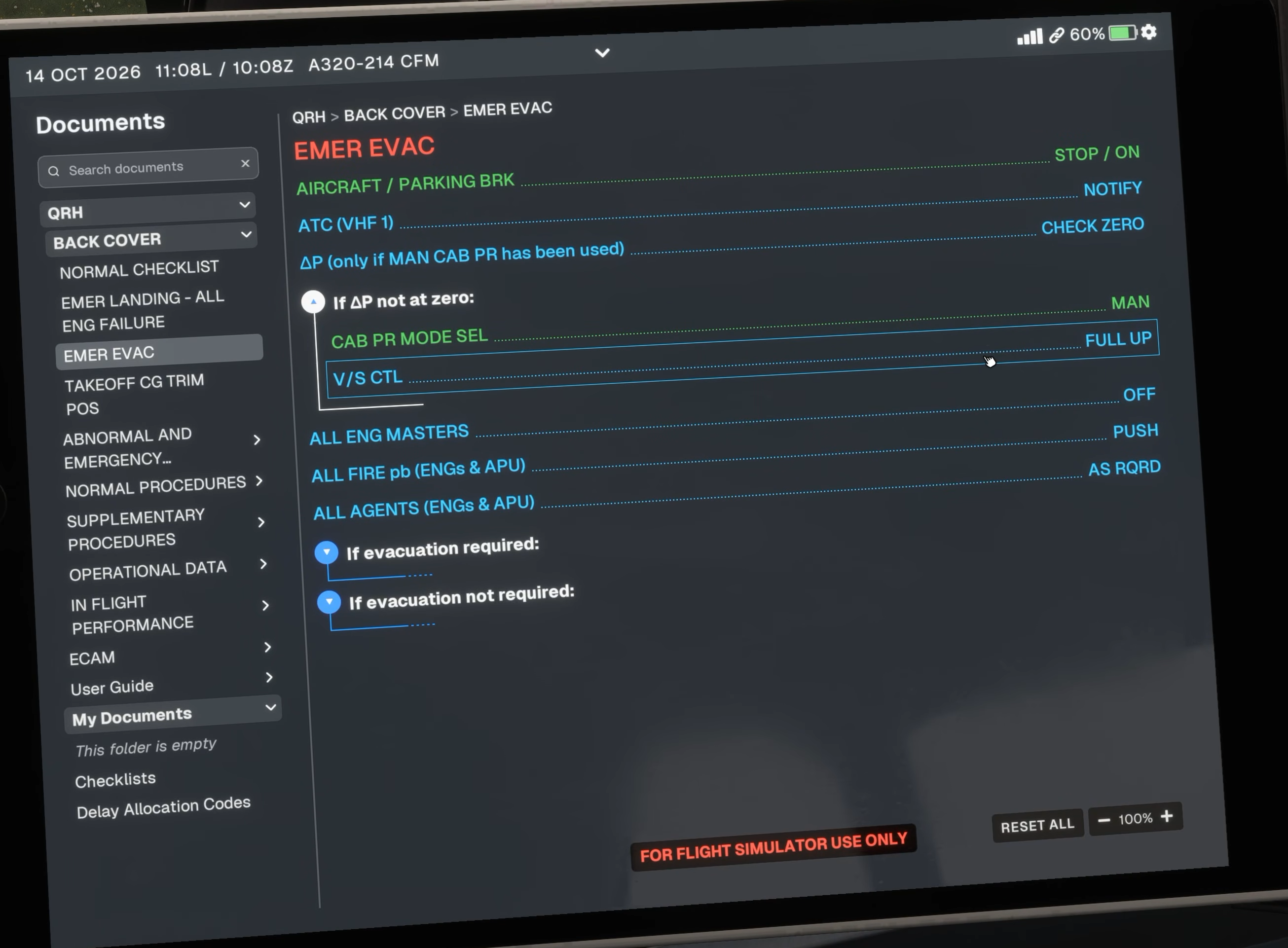
Original Fenix V3 Documents interface. EMER EVAC is selected in this source image; it illustrates navigation, not a normal-flight action. [82, Source illustration]