MCDU PREPARATION: BUILD A CONSISTENT SET OF DATA
The MCDU, short for Multi-purpose Control and Display Unit, is the small screen and keyboard used to work with the flight-management system, or FMS. The screen is small; its working life is surprisingly busy. The system combines our route with information about position, mass and the flight we intend to make. We will visit its pages in a sensible order, enter one useful item at a time, and look at what the aircraft accepted. [26, PDF pp. 71-80]
Around the screen are six line-select keys on each side. They are usually called LSKs. A manual's reference to 1R means the top key on the right; 6L means the bottom key on the left. The important label is displayed beside the key on the current page. The same physical key can have a different job after the page changes. Those addresses soon become familiar; you will not be counting buttons forever. [26, PDF pp. 71-80]
Typed text first appears in the scratchpad, the entry line at the bottom of the display. It is a temporary place to prepare a value. To put that value into the flight data, select the key beside the intended field. Then read the accepted value in that field. This last look is a small habit with a considerable payoff: it catches an incorrect destination or a misplaced decimal while the aircraft is still comfortably parked. [26, PDF pp. 71-80]
The scratchpad can also show messages. If the MCDU rejects an entry, clearing the message only lets you continue working; it does not prove that the entry succeeded. Read the field again and check what the page requires. Perhaps the format is wrong, a waypoint is absent from the database, or the entry is unavailable in the present state. We will handle these situations through their actual cause rather than by trying a succession of attractive numbers. [26, PDF pp. 71-80]
Our independent reference is the OFP, the operational flight plan for the sector. It records the planned route and associated flight information. The navigation display, or ND, gives us a larger view of the route entered through the MCDU. Use that larger view after working on the small screen: the waypoint order may look tidy in a list while the map reveals an unexpected turn. [26, PDF pp. 99-128]
A complete preparation is a consistent set of information. The route, runway, position, mass, fuel and performance assumptions all need to belong to the same flight. As those inputs come together, the system can calculate useful predictions. We then compare the predictions and route with our plan. The practical exercise that follows develops this rhythm: enter, read back, and inspect the result in its wider setting. [26, PDF pp. 99-128]
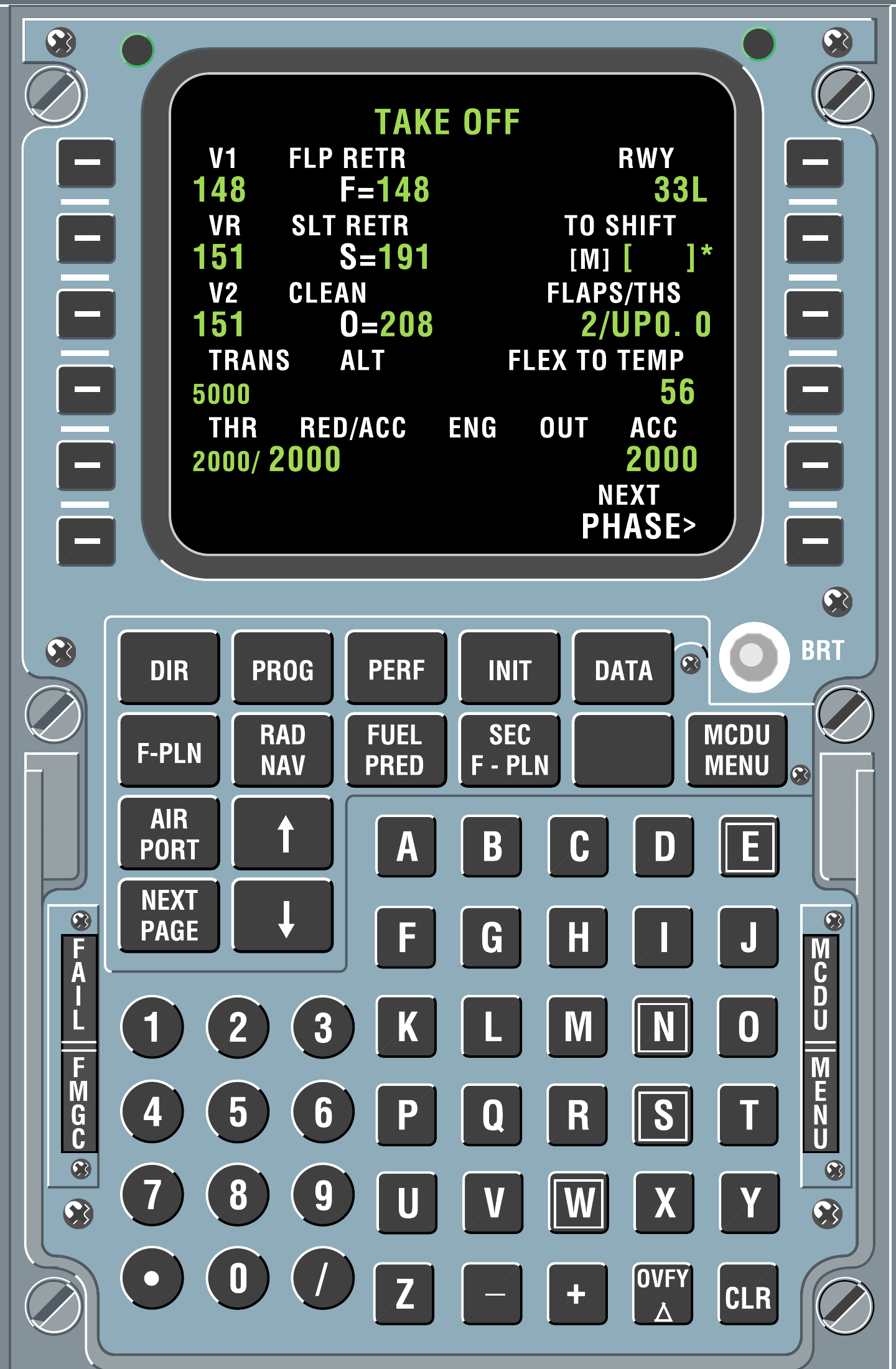
MCDU display, twelve line-select keys, page keys and keyboard. Original reference screen depicts a different flight; the exercise inputs are given separately. [44, PDF p. 1]
IN PRACTICE: A clean entry, a deliberate change
Before you begin: Aircraft powered and parked. Keep the current OFP available. This is an entry-and-review drill, not a request to rebuild an already verified flight.
1. Start with the destination field
Action. Find the field you intend to change and read its label and present value before typing. Use the value from the flight document, with the units and field order actually displayed.
Check. You know both what the entry means and which existing value it will replace. You are not relying on a remembered line-key position from a different page. [26, PDF pp. 73-74,79-80]
2. Read the scratchpad once
Action. Type the intended entry, then inspect the complete scratchpad before selecting the receiving field. Check the slash, decimal point and any direction or airport suffix that the entry requires.
Check. The scratchpad contains exactly the proposed value. A correct-looking prefix has not hidden a wrong final digit or airport letter. [26, PDF pp. 73-74,79-80]
3. Verify the accepted result
Action. Select the line key beside the target field. Read the value now displayed in that field, rather than judging success from the disappearance of scratchpad text alone.
Check. The intended field contains the intended value in the MCDU display format. Any derived or associated field that changes is also understood. [26, PDF pp. 73-74,79-80]
4. Treat a rejection as a rejected entry
Action. If a format, database or entry-permission message appears, check the target page and entry format. Clear the message to work on the problem; then correct and submit the intended entry.
Check. The message has been resolved and the receiving field has actually changed. Clearing a message has not been mistaken for acceptance. [26, PDF pp. 73-74,79-80]
5. Separate proposal from commitment
Action. When a route change opens TMPY F-PLN, inspect its affected legs and the ND geometry. Select INSERT only for the route you intend; use the offered ERASE function to abandon an unwanted proposal.
Check. The active route agrees with the reviewed proposal, or the original route remains intact after the proposal is erased. [26, PDF pp. 312-314]
Complete when: You can distinguish an accepted entry, a rejected entry and a temporary route revision, and you have left the intended active data in place.